
Customizations
Winhance brings several Windows appearance controls into a single navigation area. It is best used as a checklist of personal preferences, not a mandatory tuning sequence.
Check before you change: Begin with Windows Settings for straightforward themes and layouts, then use additional options only where they solve a specific need.
Independent context: safe debloat checklist · Winhance vs Settings · how we prepare guides.
Customize is where the desktop stops looking like a default install. Adjust the visual side of Windows and the small interaction details that decide how quickly you can get to the things you open most.
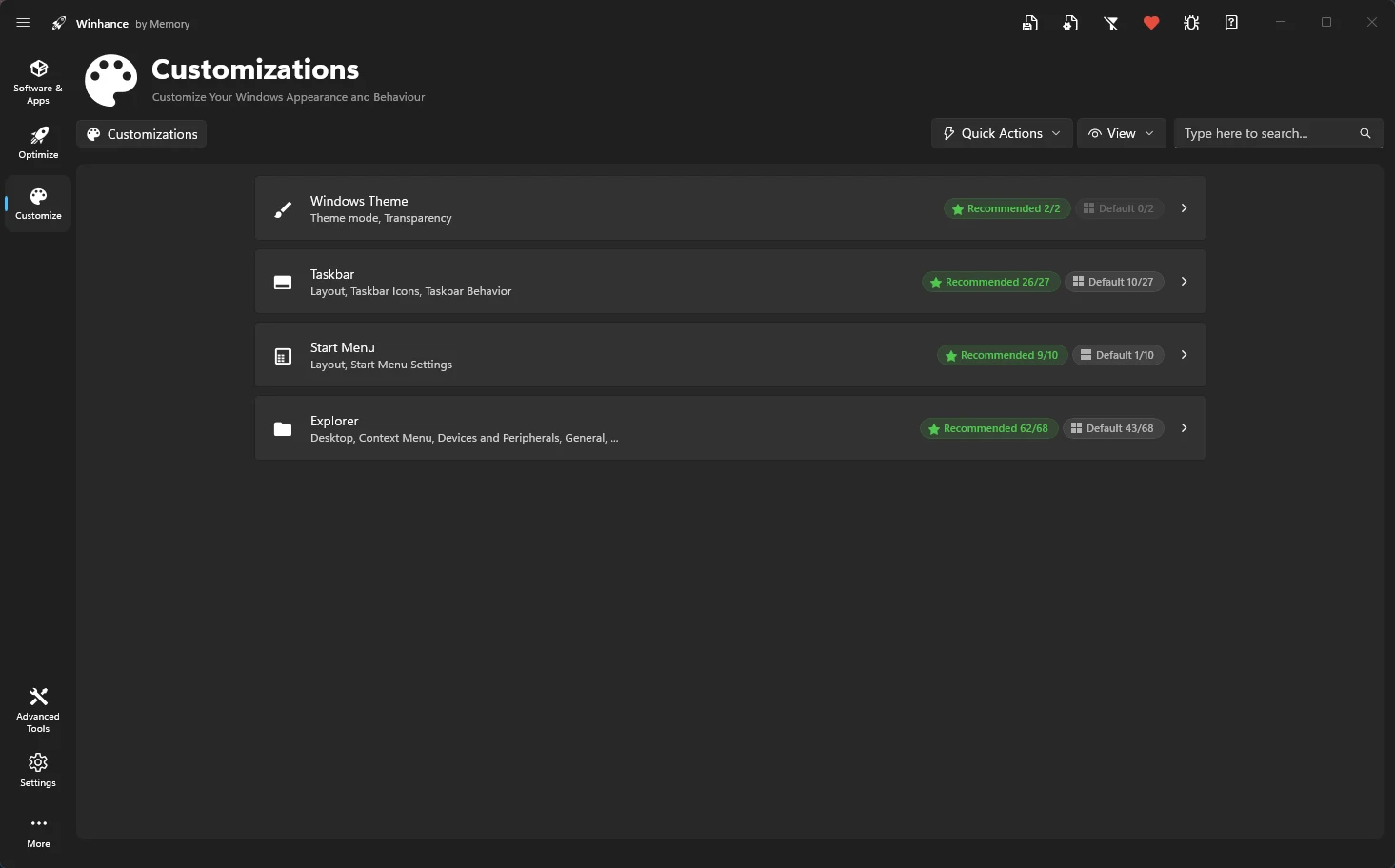
Switch between light and dark modes, manage transparency, and set matching wallpapers.
Adjust alignment, transparency, and add 'End Task' functionality.
Remove bloatware pins and disable recommended items.
Restore classic menus, show file extensions, and gain ownership of files.
Winhance also provides quick toggles for individual visual effects like window shadows, menu animations, and font smoothing to improve responsiveness.